Downloading a CSV file for a Project
This page breaks down how to download a project CSV file after the project has been labelled.
Accessing the Labeller's Project Page: Start by signing into the platform where your project is stored. Use your credentials to access your account.
Selecting Your Project: Once logged in, you will be sent to the Labeller Project home page. This area typically provides an overview of your projects and their statuses. Browse through the list of projects you are involved with and look for the project title from which you need to download the CSV file. The page will indicate how many labels have been labelled and how many remain unlabelled.
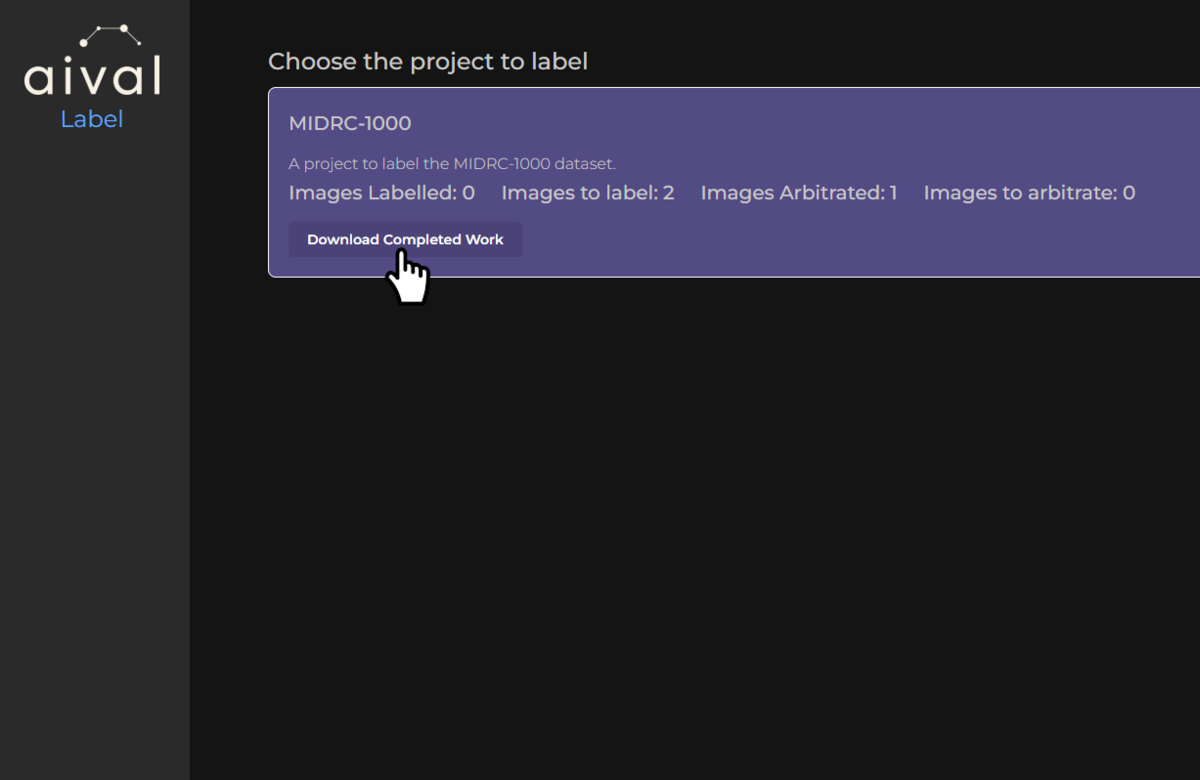
Downloading the CSV File: Look for a 'Download' button to start the download process of your CSV file. Depending on the size of your dataset in the project, it may take a few moments to prepare your CSV file. You might see a loading indicator or receive a notification when the file has been downloaded. Once the file has been downloaded, it will appear in your 'Downloads' folder and it will be called {your_email}_{project_name}_label.csv, where each project csv filename will be project title specific with your email.
Example Labeller CSV file
Below is an example screenshot of the CSV file that can be expected when downloading the labels for a project. This downloaded user csv file contains the Labelled At, Accession Number, Study UID, Series UID for each study you have labelled.
